Credit and debit notes
This page is for people your administrator has given access to Receivables with permission to prepare invoices. Issuing a credit note also needs a second person, usually the organization’s owner.
An issued invoice cannot be changed. When it was wrong, you correct it with a note:
- a credit note reduces what the customer owes, for example for returned goods, an overcharge or an agreed allowance;
- a debit note adds to what the customer owes, for example for an undercharge or a delivery charge you forgot.
Both are on the Sales invoices page, on the Credit notes and Debit notes tabs. They use the same lines as an invoice; see Sales invoices for the line fields.
Credit notes
Section titled “Credit notes”Prepare a credit note
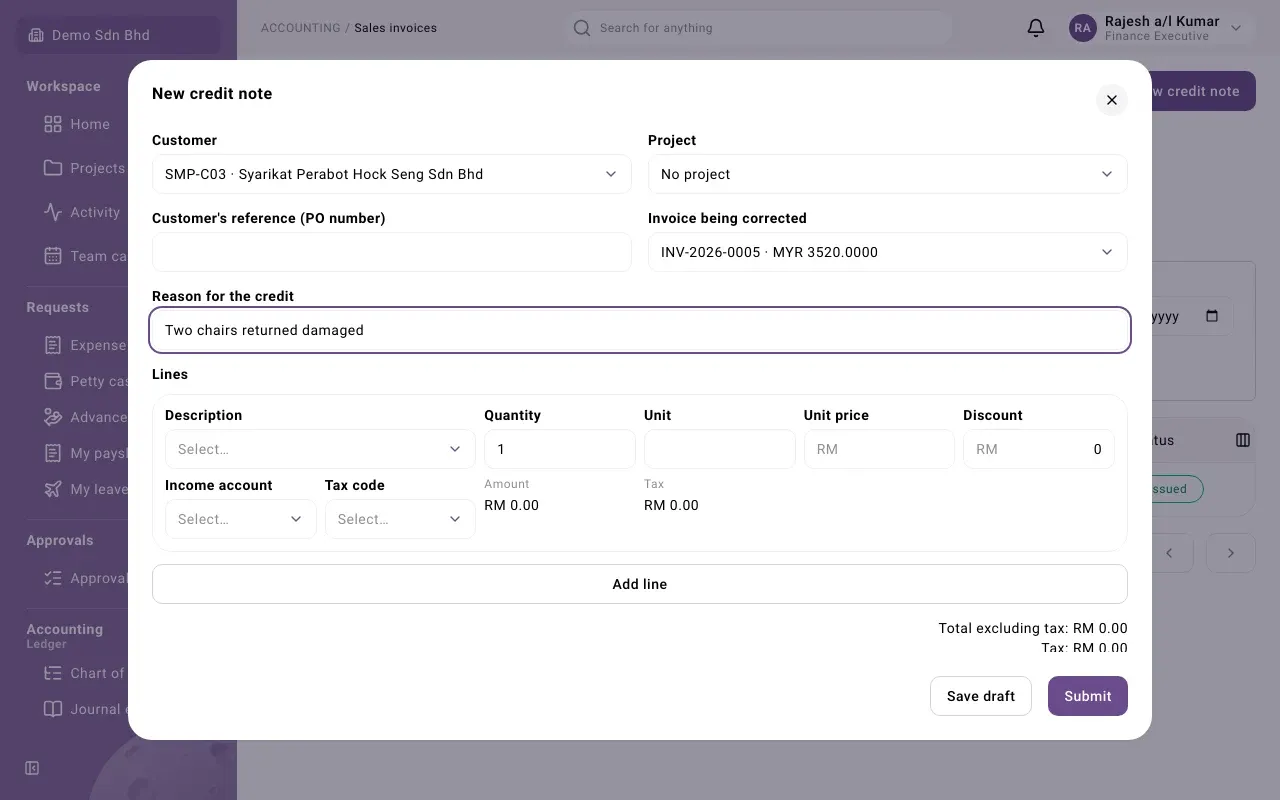
Section titled “Prepare a credit note”- On the Credit notes tab, select New credit note.
- Choose the Customer.
- Choose the Invoice being corrected. Only issued invoices of that customer are listed, each with its currency and total. The credit note takes that invoice’s currency and exchange rate; you cannot change them.
- Enter the Reason for the credit, for example “Two chairs returned damaged”.
- Add a line for each thing you are crediting, with its price and tax code. When the customer has returned goods through a sales return, a Sales return line field lets you link the line to it.
- Select Submit, or Save draft to finish later.
The credit notes on one invoice cannot add up to more than the invoice’s total. If they would, you see “This credit note would take the invoice’s credit notes past the invoice total.”
Approval
Section titled “Approval”A submitted credit note shows Pending approval. It must be approved by someone other than the person who prepared it; by default that is your organization’s owner, and your administrator can change who it is. The approver opens it from the Credit notes tab and selects:
- Approve and issue: the credit note is issued, gets its number (for example CRN-2026-0002) and is recorded in the books; or
- Reject, with a reason. The credit note shows Rejected. The preparer opens it, selects Revise to turn it back into a draft, fixes it and submits it again.
A draft that is no longer needed can be withdrawn with Withdraw and a reason.
What the credit note does when it is issued
Section titled “What the credit note does when it is issued”When it is issued, the credit note applies itself to the invoice it corrects, up to what that invoice still has outstanding. You can see this under Allocations on both documents.
If the invoice was already paid, part or all of the credit is left over. The credit note then shows the leftover as Outstanding, and you can apply it to another open invoice of the same customer, in the same currency and at the same exchange rate:
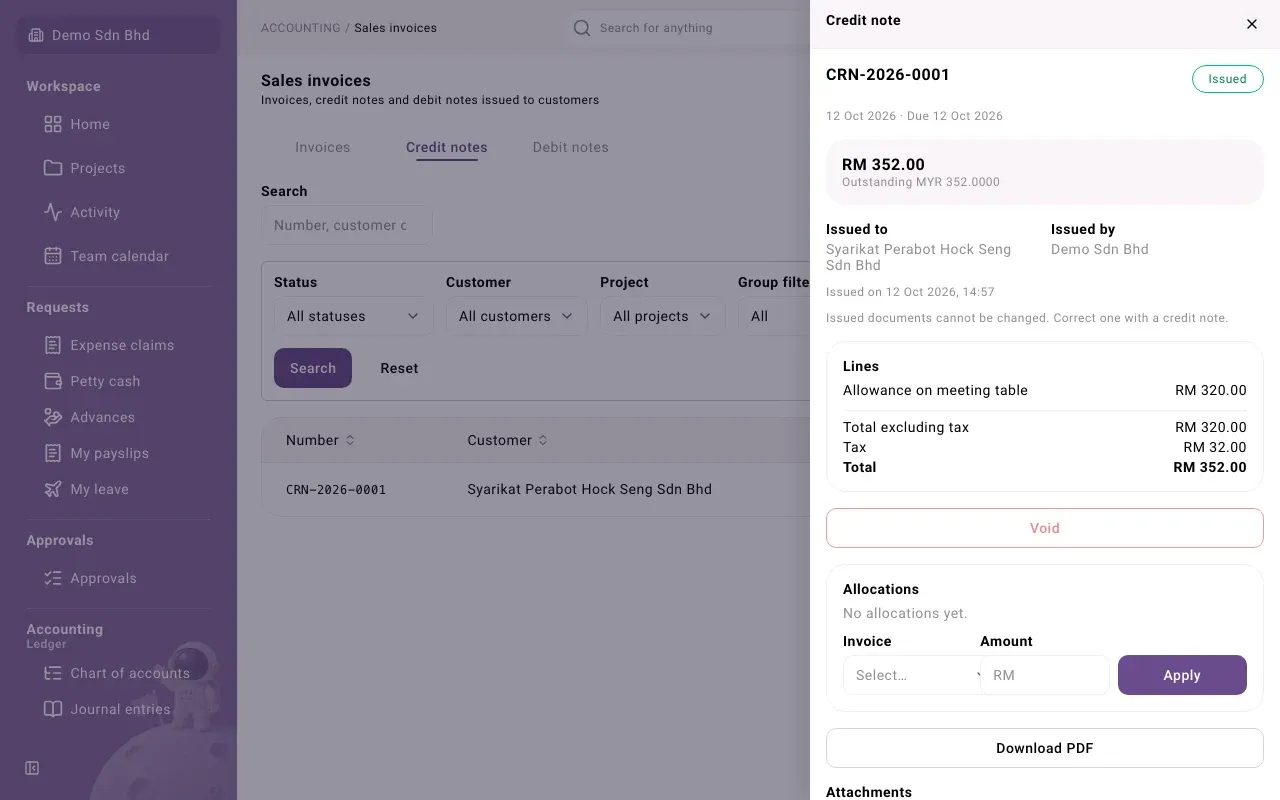
- Open the credit note.
- Under Allocations, choose the Invoice and enter the Amount.
- Select Apply. You see “Allocation recorded”.
To undo an application, select Reverse next to it. The reversal is kept in the history; the original line shows Reversed.
Refunding a credit balance to the customer is not done here. Ask your finance lead how refunds are handled.
Debit notes
Section titled “Debit notes”- On the Debit notes tab, select New debit note.
- Choose the Customer.
- Choose the Original invoice (optional), or No original invoice.
- Enter the Reason for the debit, if you want one.
- Check the Currency, the Exchange rate to your base currency if it is a foreign currency, and the Payment terms (days). A debit note has its own; it does not take them from the invoice.
- Add the lines.
- Select Issue debit note, or Save draft.
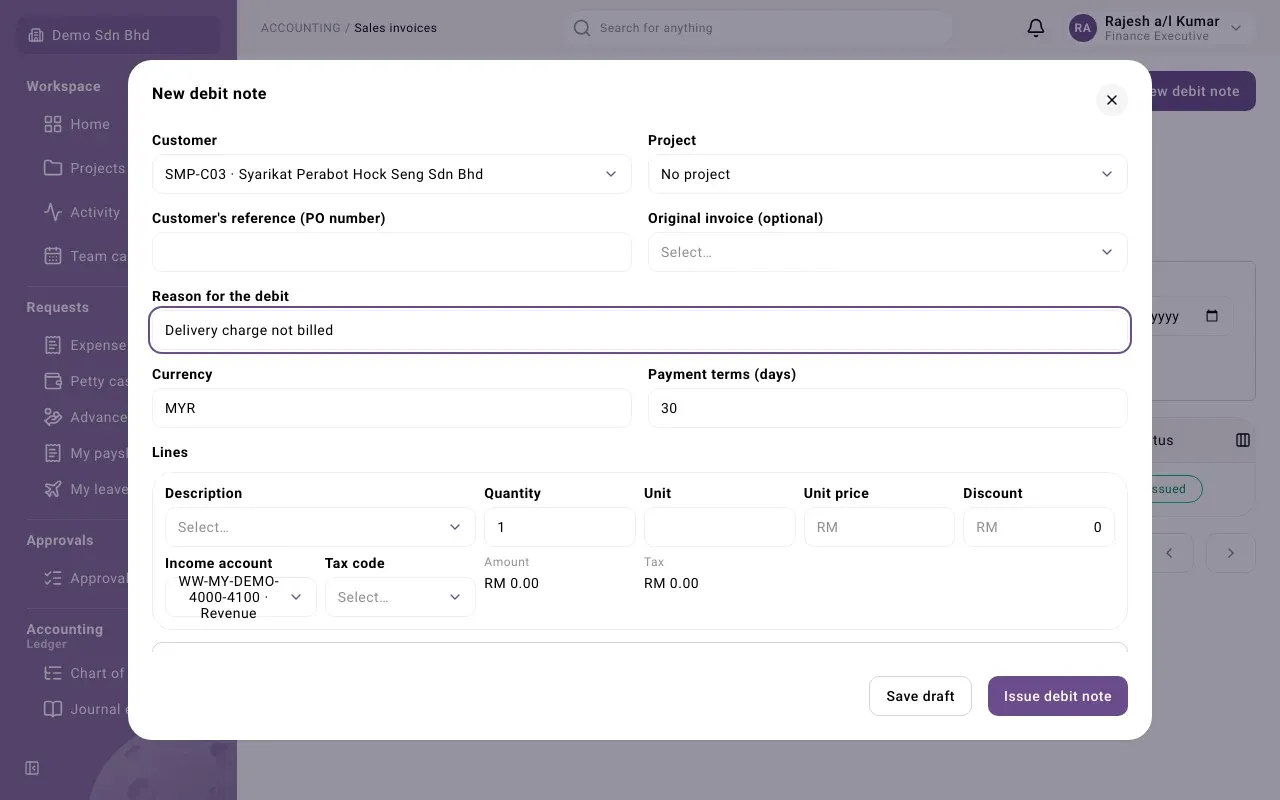
A debit note is issued straight away, like an invoice: there is no approval step. It gets a number such as DN-2026-0002, a due date from its payment terms, and is recorded in the books. The customer pays it like an invoice: it appears in the receipt form’s list of open documents.
Statuses
Section titled “Statuses”See Sales document statuses for every status of a credit note and a debit note.